Best Google Chrome Screenshot Extension: Top Picks for Designers
Every designer needs to capture their work at some point. Maybe a client wants to review a mockup, or you need to document a UI pattern, or you're building a design portfolio. The right screenshot tool makes all of this faster and actually produces better results.
Chrome extensions are convenient because they live in your browser—no switching apps, no clipboard fumbling. But not all screenshot extensions are created equal. Some are bare-bones, others are overloaded with features you'll never use, and some just don't work when you need them most.
This guide covers the best Google Chrome screenshot extensions for designers. I tested these myself, considered what matters for design work specifically, and organized them by use case so you can pick what fits your workflow.
What Makes a Screenshot Extension Good for Designers
Before diving into the list, let's talk about what actually matters:
Image quality is non-negotiable. If you're capturing UI work, you need crisp images at actual size or scaled appropriately. Some extensions compress aggressively and introduce artifacts—bad news if a client is reviewing your pixels.
Annotation tools vary wildly. Some give you basic arrows and text. Others offer blur, highlight, pixelate, shape drawing, and even basic editing. More features aren't always better, but having the right options when you need them matters.
Export options determine what happens after you capture. Do you need instant download? Cloud upload with a shareable link? Clipboard copy? Integration with tools like Slack, Jira, or Figma?
Reliability is underrated. The best extension is the one that works when you open that tricky modal, capture that dropdown state, or get that full-page scroll that always seems to break.
The Best Google Chrome Screenshot Extensions
Lightshot: Quick and Dirty
Lightshot is the extension you reach for when you need something fast and don't want to think about it. Click the extension icon, drag to select any area, and you're done.
The annotation tools are minimal—text, arrows, shapes, and that's about it. But that's also the point. It doesn't overwhelm you with options you won't use. You can adjust colors and line thickness, which covers 90% of what most people need for quick feedback capture.
Export options are straightforward: save to your computer or copy to clipboard. No cloud accounts, no complicated sharing workflows.
Best for: Quick captures, simple annotation, when you just need to grab something fast
What it's missing: Advanced editing, full-page capture, cloud storage
Nimbus Screenshot: The Feature-Packed Option
If Lightshot is minimal, Nimbus is the opposite. This extension has more features than most people will ever need, but if you need those features, they're there.
Full-page capture works reliably—even on sites that usually break scroll capture. You can record video (both screen and tab), capture entire sections with scroll, and annotate extensively. The editor lets you blur sensitive data, highlight areas, add text with backgrounds, draw shapes, and more.
The free version is solid. Premium adds cloud storage, longer video recording, and priority support—but the free tier handles most designer needs.
Best for: Full-page captures, video recording, detailed annotation
Watch out for: The interface has a learning curve. There are a lot of options, which can feel overwhelming at first.
Awesome Screenshot: Built for Collaboration
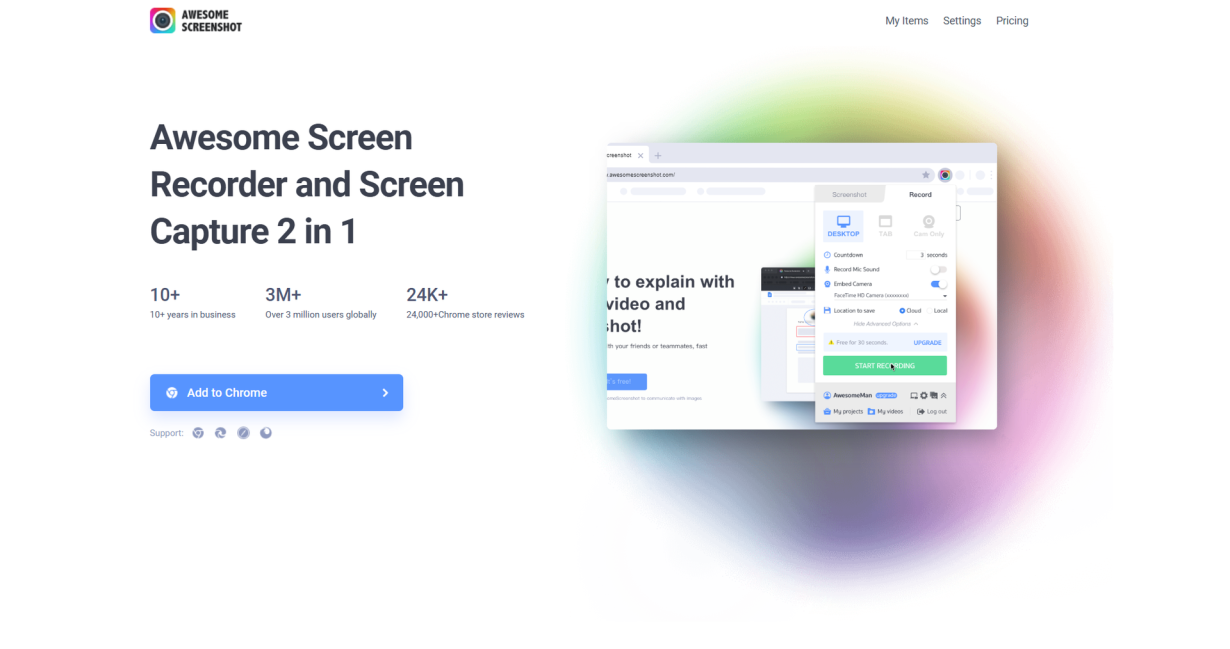
Awesome Screenshot leans hard into the collaboration use case. Capturing is just the first step—sharing and collecting feedback is where it shines.
The annotation tools are robust: text, arrows, shapes, blur, highlight, and pixelate. You can also add comments that attach to specific areas of the image, not just floating anywhere. This matters when you're collecting feedback from clients or stakeholders who might not be technical.
After capture, you can upload to Awesome's cloud and share a link, download directly, or integrate with tools like Jira and Trello. The cloud sharing creates a visual feedback loop where people can comment directly on the image.
Best for: Client collaboration, feedback collection, team workflows
Watch out for: The cloud features require an account. Free tier has limits on cloud storage.
Screenity: The Most Underrated Option
Screenity doesn't get as much attention as the others, which is a shame because it's genuinely good. It handles screenshot capture and screen recording with equal competence.
For screenshots, you get selectable area, full page, visible part of tab, and hidden elements (like behind you). The annotation tools are comprehensive without being overwhelming—exactly what you'd expect from a well-designed tool.
What sets Screenity apart is the editing. You can trim recordings, add annotations after the fact, and export in various formats. It also lets you record system audio (not just microphone), which is useful for creating tutorials or demos.
Best for: Recording tutorials, system audio capture, balanced feature set
Watch out for: Some advanced features require the premium version.
GoFullPage: When Nothing Else Works
Full-page screenshots are harder than they should be. Most extensions either fail on long pages, introduce glitches on scroll, or produce files too large to share. GoFullPage specializes in exactly this problem.
The name says it all: this extension exists to capture full pages. You click, it scrolls automatically, captures everything, and stitches it together. The results are typically more reliable than general-purpose tools for this specific use case.
Annotation is basic—adding text, arrows, and basic shapes. Export options include save to PNG or PDF, clipboard copy, and that's about it.
Best for: Long pages, blog posts, documentation
What it's missing: Advanced annotation, video recording
Quick Comparison
| Extension | Best For | Annotation | Full Page | Free |
|---|---|---|---|---|
| Lightshot | Quick captures | Basic | No | Yes |
| Nimbus Screenshot | Feature needs | Advanced | Yes | Yes |
| Awesome Screenshot | Collaboration | Advanced | Yes | Yes |
| Screenity | Recording | Advanced | Yes | Yes |
| GoFullPage | Long pages | Basic | Yes | Yes |
Practical Tips for Better Screenshots
Having the right tool is half the battle. Here's how to get more value from your captures:
Capture at actual size first. You can always scale down later, but you can't recover detail from a compressed small image. Capture at 1x or 2x, then optimize for sharing if needed.
Blur strategically. If you're sharing work-in-progress, you probably have elements you don't want visible—internal notes, placeholder content, browser extensions. Use blur or pixelate, not just covering things with shapes.
Name your files. I know, it's obvious, but how many "screenshot-2024-03-15.png" files do you have? Meaningful filenames help you find things later and help clients understand what they're looking at.
Consider the context. A quick Slack message might not need full annotation. A formal client presentation probably does. Adjust your approach accordingly.
Making Your Choice
There's no single best extension—it depends on what you need most. Here's how to decide:
Start with Lightshot if you just need fast, reliable captures without fuss. Upgrade if you hit its limits.
Choose Nimbus when you need full-page capture or video recording that works reliably. The learning curve is worth it for the feature set.
Pick Awesome Screenshot when collaboration is the priority. The feedback features justify the account setup.
Try Screenity if you want a solid middle ground with good recording capabilities. It's the most underused option here.
Use GoFullPage as a supplement when you specifically need full-page captures that other tools struggle with.
The good news: all of these are free to try. Install one, use it for a week, and see if it fits. You might be surprised what works for your specific workflow.
Final Thoughts
The best screenshot extension is the one you actually use. A powerful tool you never open is worse than a simple tool that works. Try a few, see what clicks, and stick with it.
For most designers, I'd start with Lightshot for quick captures and Nimbus for when you need more. That's a combination that handles nearly every situation without either tool feeling like overkill.