18 Common Typography Mistakes That Are Killing Your Design (And How to Fix Them)
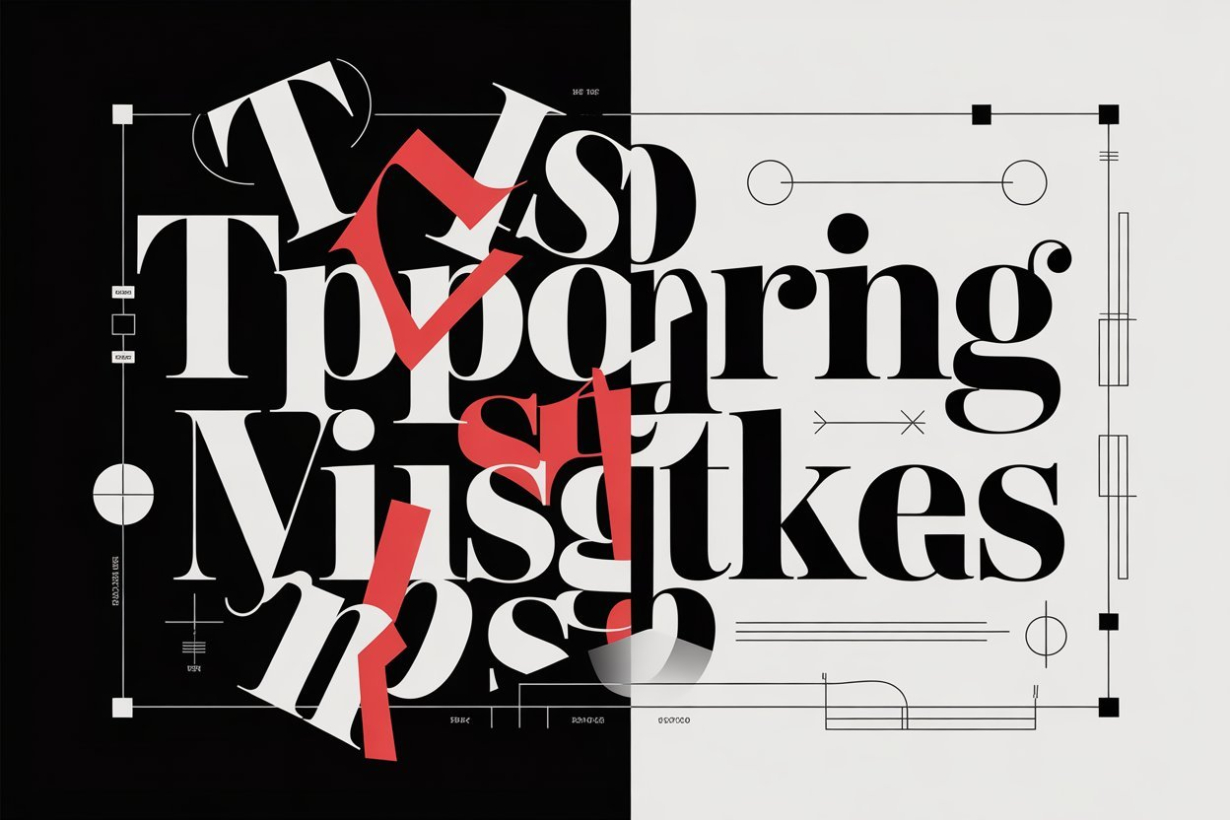
You've seen it before—a website that looks professionally designed, but something feels off. The text seems hard to read, or the layout feels cluttered despite having plenty of white space. More often than not, the culprit is typography. For newbie designers, typography mistakes are the silent killers of otherwise solid designs. They're subtle, easy to overlook, and can undermine all your hard work in seconds.
The good news? These mistakes are completely avoidable once you know what to look for. Whether you're designing websites, creating marketing materials, or building brand identities, mastering typography fundamentals will instantly elevate your work from amateur to professional.
Why Typography Matters More Than You Think
Typography isn't just about making text look pretty—it's about communication. Studies show that typography influences how users perceive credibility, readability, and even the emotions conveyed by your message. A well-typeset design builds trust; a sloppy one signals carelessness.
For newbie designers, the temptation to focus on flashy visuals over typography is real. But here's the truth: typography is the backbone of all visual design. Get it right, and everything else falls into place. Get it wrong, and no amount of clever graphics will save your design.
18 Common Typography Mistakes and How to Fix Them
1. Using Too Many Fonts
One of the most common mistakes is cramming five different fonts into a single design. Each font change creates visual noise and confuses the reader. Stick to a maximum of two font families—one for headings and one for body text. If you need variety, use different weights, sizes, or styles of the same font family.
2. Ignoring Font Pairing Rules
Pairing fonts randomly rarely works. The key is contrast—combine a serif heading with a sans-serif body (or vice versa), and ensure they share a similar mood. Use font pairing tools like Google Fonts Pair or Type Scale to find combinations that work harmoniously.
3. Using Default Fonts
Times New Roman, Arial, and Comic Sans have become synonymous with uninspired design. While they're serviceable in a pinch, default fonts lack personality and professional polish. Explore the vast world of Google Fonts, Adobe Fonts, or quality free alternatives to find fonts that align with your brand voice.
4. Neglecting Line Length
Lines that are too long tire readers' eyes, while lines that are too short break reading rhythm. The sweet spot for body text is 45-75 characters per line. For mobile, aim for 35-50 characters. Adjust your column widths accordingly—this single change dramatically improves readability.
5. Improper Line Height
Line height (or leading) is the vertical space between lines of text. Too tight, and lines crowd each other. Too loose, and they float apart. A good starting point is 1.5x the font size for body text. Headings can use tighter leading (1.1-1.2x), while quotes or captions can breathe more (1.8-2x).
6. Ignoring Letter Spacing
Letter spacing (tracking) affects readability, especially in headings and all-caps text. Too tight, and letters mush together. Too loose, and words fall apart. Small-caps often need increased tracking for legibility. Use your type tool's tracking controls to fine-tune—subtle adjustments make huge differences.
7. Inconsistent Type Scale
Random font sizes create visual chaos. Instead, establish a type scale—a mathematical system where text sizes relate to each other harmoniously. Common ratios include 1.25 (Major Third), 1.414 (Augmented Fourth), or 1.618 (Golden Ratio). Tools like Type Scale help generate cohesive hierarchies.
8. Poor Contrast
Low contrast between text and background strains eyes and fails accessibility standards. Ensure at least 4.5:1 contrast ratio for normal text (3:1 for large text). Dark gray on off-white usually works better than pure black on pure white—it reduces eye strain while maintaining readability.
9. Wrong Paragraph Spacing
Many designers either crowd paragraphs together or create massive gaps. The ideal paragraph spacing is typically 0.5-1x your line height. Also, avoid indenting the first paragraph—it's an outdated convention. Use spacing between paragraphs instead.
10. Ignoring Optical Alignment
Relying solely on mathematical alignment can create visual imbalances. Optical alignment accounts for how our eyes perceive different shapes. For example, a text block with a round icon should sit slightly lower than a square icon to appear vertically centered. Train your eye to see these nuances.
11. Using Italics Incorrectly
Italics aren't just shrunk versions of regular text—they're redesigned for emphasis. Some fonts render poorly in italics, creating wobbly or hard-to-read letters. Use italics sparingly (for titles, foreign words, or emphasis), and avoid italicizing entire sentences or paragraphs.
12. Ignoring Kerning
Kerning is the space between individual letter pairs. Auto-kerning usually handles most cases, but certain letter combinations (AV, WA, To, Yo) often need manual adjustment. Zoom in to 200% and check problematic pairs—good kerning is invisible; bad kerning screams amateur.
13. Setting Text in All Caps for Body Copy
ALL CAPS TEXT IS HARD TO READ BECAUSE WE RECOGNIZE WORDS BY THEIR SHAPES—WHICH DISAPPEARS IN ALL CAPS. Use uppercase sparingly, and never for body text. It's acceptable for abbreviations, logos, or short call-to-action buttons.
14. Ignoring Vertical Rhythm
Vertical rhythm creates consistency across your design by aligning elements to a baseline grid. When text, images, and spacing all relate to a consistent vertical unit, your design feels cohesive and intentional. Establish a baseline (typically your body text line height) and build your entire layout around it.
15. Using Center Alignment for Body Text
Center-aligned text creates jagged left edges, making it harder for eyes to track from line to line. It's fine for headlines, quotes, or short pull quotes, but stick to left-aligned (or justified, with caution) for body text. This is especially critical for long-form content.
16. Ignoring Hyphenation Settings
When justified text creates unsightly gaps between words, hyphenation helps create cleaner lines. Enable automatic hyphenation, but set reasonable limits—typically 2-3 characters minimum. Avoid hyphenating the last line of a paragraph or words that are already short.
17. Neglecting Mobile Typography
What works on desktop often fails on mobile. Ensure body text is at least 16px on mobile (browsers zoom out smaller text by default). Increase line height slightly for mobile readability, and always test your typography at actual device sizes, not just in browser dev tools.
18. Not Testing Type at Different Sizes
A font that looks elegant at 24px might fall apart at 12px or sparkle at 72px. Test your typography across the full size range you intend to use. Some fonts are optimized for display, others for body text—choose accordingly, or your design will look inconsistent.
Quick Fixes You Can Apply Today
Feeling overwhelmed? Start with these quick wins:
- Audit your fonts: Limit yourself to two font families maximum.
- Check your line height: Aim for 1.5x font size on body text.
- Test contrast: Use a contrast checker to verify readability.
- Establish a scale: Use a type scale calculator before setting sizes.
- Proofread obsessively: Nothing kills credibility faster than typos.
Conclusion
Typography mistakes are easy to make but simple to fix. The key is developing an eye for detail and understanding the fundamental principles that govern good type design. Start by avoiding these 18 common pitfalls, and you'll immediately notice your designs feeling more professional and polished.
Remember: great typography is invisible. When done right, readers won't consciously notice your font choices—they'll simply absorb your message effortlessly. That's the ultimate goal.
Ready to clean up your typography? Start with one mistake from this list and fix it in your next project. Then work through the rest. Your designs (and your clients) will thank you.
Linh Nguyen
Graphic Designer
Passionate Graphic Designer | Specializing in Illustration Design | Bringing Captivating Visuals to Life