Affinity Photo Problems: The Honest Guide to What Actually Frustrates Users
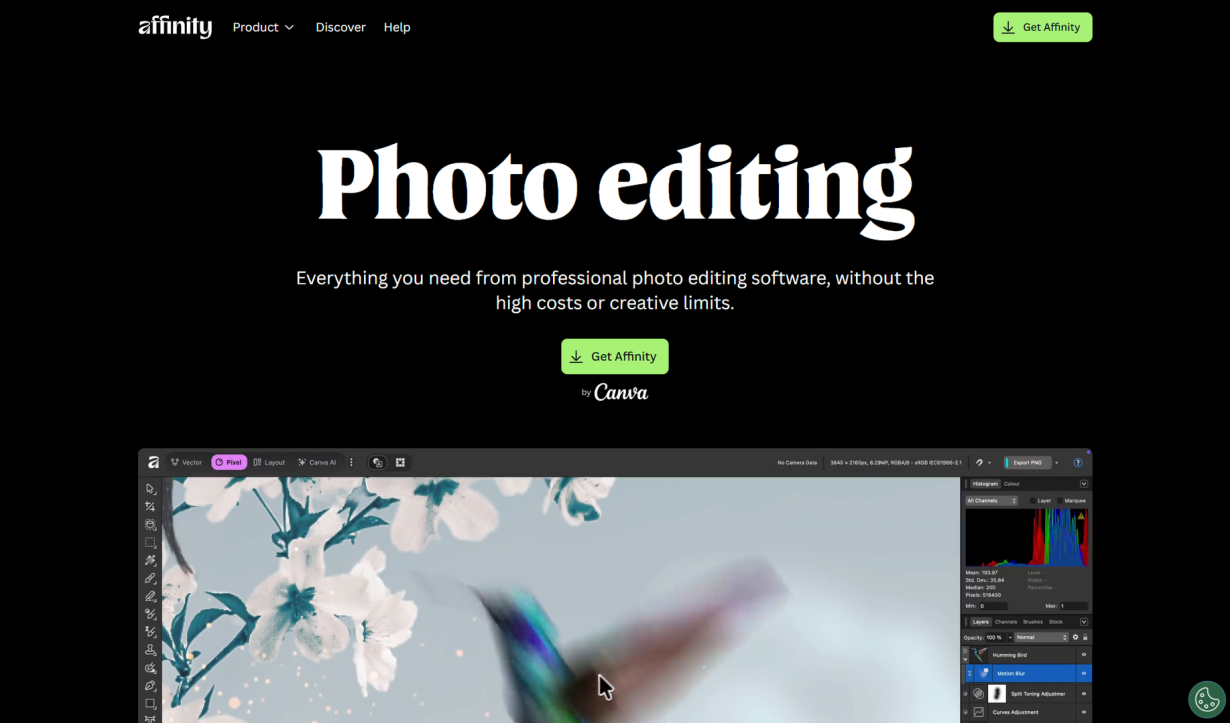
Every photo editor has its cult following. Affinity Photo's is loud, loyal, and largely justified — the app delivers professional-grade editing at a one-time price that makes Adobe's subscription model look obscene by comparison. But the evangelism sometimes drowns out the legitimate complaints, and if you are evaluating Affinity Photo in 2026, you deserve to hear both sides.
This is that guide. No paid review. No curated highlights. Just the problems users actually run into after months of real use — and an honest look at which ones should stop you from choosing it and which ones you can work around.
Why Affinity Photo Problems Get Overlooked
The Affinity community is unusually passionate. Serif built something genuinely impressive — a raster editor with Develop Persona for RAW processing, frequency separation built in, and no subscription required. That earns fierce loyalty.
But loyalty makes criticism harder to find. Forums and subreddits tend to be dominated by people who love the product, which means the problems only surface when someone is frustrated enough to post. And by that point the frustration is usually real and specific.
The other reason problems get buried: most comparisons with Affinity Photo focus on features. Feature lists do not capture the day-to-day friction of working in an app for eight hours — the memory spike when you open a large file, the plugin that will not load, the export setting you forgot to change. This post is about those friction points, not the marketing claims.
💡 Tip: If you are evaluating Affinity Photo, try the free trial for at least two weeks with a real project — a RAW folder of 50+ images, a portrait with heavy retouching — before drawing conclusions.
Problem 1: No AI Filters — The Gap That Widens Every Year
This is the most common complaint and the one with the most momentum behind it.
Adobe has integrated generative AI into Photoshop at a pace that has left competitors scrambling. Generative Fill, the Remove Tool, Neural Filters — these are not cosmetic additions. They change how you work. Selecting an object, removing it, replacing it with something contextually coherent used to take fifteen minutes with the Clone Stamp. It now takes thirty seconds with Generative Fill and a natural language prompt.
Affinity Photo has not shipped anything comparable. There is no native equivalent. Serif's development pace has been solid on traditional features, but AI integration has been conspicuously absent — and that absence compounds with every Photoshop update.
The practical consequence: photographers and retouchers who work in Photoshop can execute certain complex edits in a fraction of the time. If your workflow involves a lot of object removal, background replacement, or smart upscaling, the AI gap will slow you down in ways that cost real time.
What exists: Affinity Photo has solid inpainting and a healing brush that work well for most use cases. The Develop Persona has effective lens corrections and decent upscaling. For basic object removal, it is adequate. For the more complex generative use cases that are becoming standard in competing products, it is behind.
The question to ask yourself: do you need AI features today, or are you comfortable working without them? If your editing workflow is primarily tonal, color-based, and layer-driven — which many photographers' are — the gap may never bother you. If you regularly need to remove objects, generate backgrounds, or upscale with AI assistance, look elsewhere.
Problem 2: A Smaller Plugin Ecosystem
Photoshop's plugin ecosystem is enormous. Thousands of third-party tools — from exposure correction to noise reduction to specialized effects — work within Photoshop's architecture. Affinity Photo does not have access to this ecosystem. Photoshop plugins run on a different architecture and do not load in Affinity.
This matters more than it might seem at first. Many photographers have built workflows around specific plugins — Nik Collection for color correction, Topaz for AI noise reduction, exposure prediction tools, optical correction suites. None of these work in Affinity Photo. You either do without them, find Affinity-native alternatives, or switch apps for those specific tasks.
The Affinity plugin ecosystem exists and is growing. Topaz, DxO, and some other major vendors have started offering Affinity-compatible versions of their tools. But the selection is meaningfully smaller, and if you have invested time and money in a specific plugin workflow, moving to Affinity means rebuilding it.
⚠️ Warning: Before committing to Affinity Photo, audit your existing plugin workflow. Check whether equivalent tools exist for the Affinity environment or whether you can live without them. Switching apps and then discovering your noise reduction plugin does not work is an expensive surprise.
The professional impact is real for studio photographers and retouchers who rely on specific tools for consistency. For hobbyists or photographers whose workflow relies primarily on built-in tools, this may be irrelevant.
Problem 3: The Canva Acquisition Uncertainty
In 2024, Canva completed its acquisition of Serif, the U.K. company behind the Affinity suite. This is the least-quantifiable problem and the one that generates the most anxiety in the user community.
Canva's business model is subscription and SaaS-oriented. Affinity's historic differentiator was one-time purchase pricing. The community's fear is straightforward: Canva acquired Affinity to move it toward a subscription model.
As of early 2026, the existing Affinity products continue to operate on their existing license model — one-time purchase with optional upgrade pricing — and there has been no announced shift to mandatory subscription. Serif has maintained that current customers will not be forced onto a subscription plan.
That reassurance is credible but not binding. Canva has not published a detailed roadmap for how it plans to monetize the Affinity brand long-term. For users who chose Affinity specifically because it did not require a recurring payment, this uncertainty is a genuine factor — not because anything bad has happened, but because the future is genuinely unclear.
The practical stance: existing Affinity Photo licenses continue to work. If you are buying today, you are buying under the current model, and you can evaluate whether the current product is worth the price on its own merits. The longer-term question — what happens in two or three years — is a legitimate concern to factor into a large purchase decision, but not a reason to reject the product if it currently does what you need.
Problem 4: RAW Processing Still Lags Behind Lightroom
Affinity Photo's Develop Persona is genuinely capable. The RAW processing engine handles a wide range of cameras, supports 256-bit color depth, and delivers high-quality output for most photographers. For photographers who are primarily shooting RAW and doing standard adjustments — exposure, white balance, curves, tone mapping — Develop Persona is more than adequate.
But Lightroom's RAW processing remains the industry's benchmark, and Capture One leads it in specific areas — particularly color science, highlight recovery, and the quality of highlight-to-shadow transitions in high-dynamic-range scenes. For landscape photographers and studio photographers who push RAW files hard, these differences are perceptible.
The gap is not enormous. It is not the kind of thing that makes a casual user notice. But if your work involves consistent, demanding RAW processing — particularly recovering shadows from heavily clipped highlights, handling mixed lighting with precise color temperature work, or processing files from medium-format sensors — Lightroom or Capture One will give you cleaner results in more situations.
💡 Tip: Affinity Photo's Develop Persona supports batch processing and lens correction profiles. For standard editorial and portrait workflows, it handles the job well. The gap only becomes apparent under the most demanding RAW processing conditions.
For wedding and event photographers whose work is time-sensitive and high-volume, the processing workflow differences also matter. Lightroom's catalog system is purpose-built for managing thousands of images with keywords, ratings, and collections. Affinity Photo has a less developed asset management layer — it works, but Lightroom's system is faster for large-scale culling and organization.
Problem 5: Performance on Very Large Files
Affinity Photo is fast — faster than Photoshop for most everyday tasks, with lower memory overhead and quicker startup. This is consistently cited as one of its strongest points, and it is genuine.
The performance story changes on very large files. Photographers working with high-megapixel sensors — 60 MP and above — large focus stacks, or complex multi-layer compositions report that Affinity Photo's memory management becomes less stable than Photoshop's under equivalent load. Large RAW stacks, HDR merges of 10+ images, and documents with hundreds of layers can cause the application to slow noticeably or, in some cases, become less predictable in its memory reclamation.
The application does not crash frequently — this is not a stability problem in the traditional sense. It is a performance scaling problem: the application works well within its comfort zone and degrades more noticeably as you push beyond typical workloads. For photographers working with large files regularly, this is worth testing with your actual workflow before committing.
On 100 MP+ medium format files, this is where the gap between Affinity Photo and the most mature competitors is most apparent. Capture One and Lightroom handle these files with more consistent memory management, and Photoshop's handling of large documents — while more resource-intensive overall — is more predictable under extreme load.
Which Problems Are Deal Breakers — and Which Are Not
Here is the honest summary.
The AI gap is the most significant long-term concern. Adobe is integrating generative AI into its workflow in ways that are not incremental — they are structural. If AI-powered editing is part of your workflow or will be soon, Affinity Photo is not the right tool for that use case.
The plugin ecosystem matters for specialized workflows. If you have invested in a specific set of third-party tools and cannot replace them, check compatibility before buying.
The Canva acquisition is a watch item, not a red flag. Existing licenses work. Future pricing is unknown. Factor in the uncertainty when making a long-term commitment, but do not treat it as a reason to avoid a product that currently delivers what you need.
RAW processing is more than adequate for most photographers. The gap relative to Lightroom and Capture One is real but narrow, and for standard editorial, portrait, and landscape work, Affinity Photo's Develop Persona holds up well. Only photographers with the most demanding RAW processing requirements will consistently notice the difference.
Performance is excellent for typical workloads and degrades under extreme conditions. If you regularly process 100 MP+ files, large focus stacks, or documents with hundreds of layers, test this with your actual files before relying on it.
The photographer who should stick with Affinity Photo: someone who values one-time pricing, works primarily in traditional editing workflows, does not depend on AI tools or a specific plugin ecosystem, and processes files in the 20-60 MP range. The photographer who should look elsewhere: someone whose workflow has significant AI integration requirements, depends on specific third-party plugins, or regularly works with very large files where performance consistency matters.
Affinity Photo is a genuinely impressive piece of software that has earned its passionate user base. It also has real, documented limitations — and knowing them before you buy is how you make the right choice.