Figma Plugins That Will Transform Your Design Workflow
Figma has evolved into the go-to design tool for teams worldwide, but its true power unlocks when you add plugins to the mix. These small additions can shave hours off your workflow, automate the mundane, and open up capabilities you didn't know existed. Whether you're cranking out client mockups daily or building design systems at scale, the right plugin组合 can completely change how you work.
This article covers ten Figma plugins that consistently appear in my own workflow. I've tested dozens over the years, and these are the ones that genuinely moved the needle for me. Let's dig in.
1. Content Reel: Populate Designs Fast
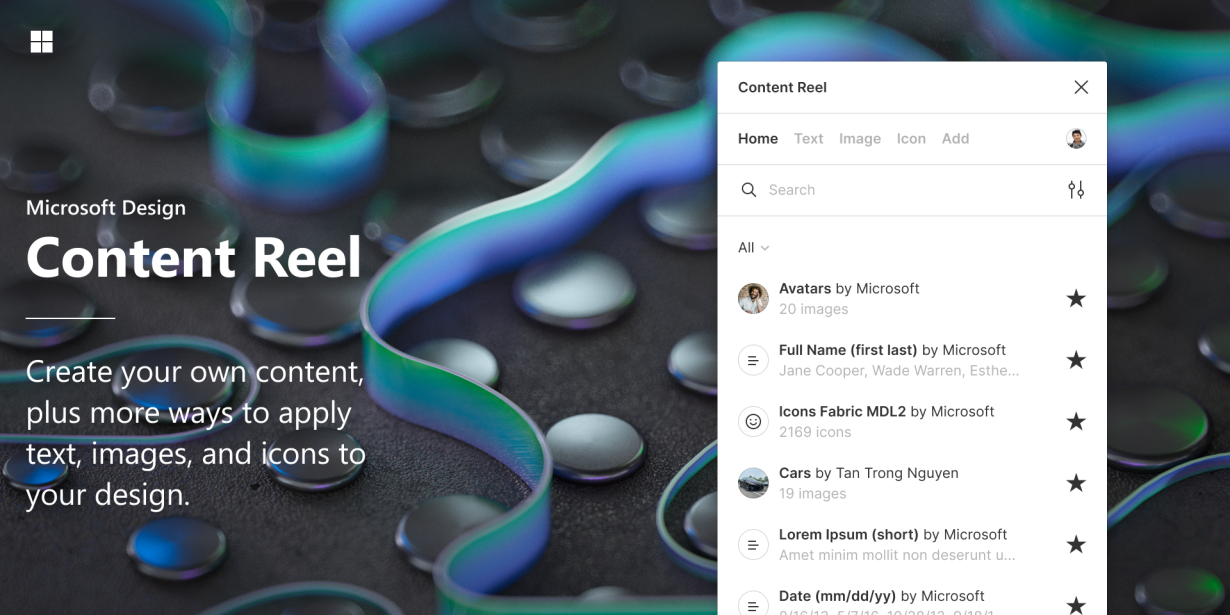
Creating realistic mockups takes time—time better spent on actual design work. Content Reel solves this by letting you inject placeholder content (names, addresses, images, icons) into your frames instantly.
What makes this plugin valuable isn't just speed, though that's huge. It's consistency. You get uniform placeholder data across entire mockups, which makes client presentations look polished rather than half-finished. The library includes realistic names, addresses, and even product data that looks like it came from a real system.
How to use it:
- Install from the Figma Community
- Select your text or image layer
- Browse the content categories or search specifically
- Click to populate
Pro tip: Combine this with Unsplash (next plugin) for mockups that look production-ready from the start.
2. Unsplash: Beautiful Images, Zero Friction
Finding the right image for a design shouldn't feel like a second job. Unsplash gives you access to millions of free, high-quality photos directly within Figma—no downloading, no switching tabs, no organizing files.
The search is surprisingly good. Type "workspace" and you get relevant results. Browse by category. Save your favorites to collections for recurring project types. The plugin handles sizing automatically, though you can adjust to fit your needs.
This matters because visual quality makes or breaks first impressions. A sleek interface paired with mediocre stock photos undermines your work. Unsplash keeps your visuals matching your design intent.
3. Auto Layout: Responsive Design Without the Headache
If you're not using Auto Layout, you're working harder than necessary. This feature (built into Figma but expanded via plugin functionality) automatically adjusts element spacing and sizing based on content.
Here's what happens: you design a card component, add more text, and instead of everything breaking, the layout reflows automatically. Change padding in one place and every instance updates. This is the foundation of scalable design systems.
Auto Layout handles:
- Vertical and horizontal stacking
- Fixed or flexible widths
- Gap spacing between elements
- Content-aware resizing
The learning curve is minimal, but the time savings compound rapidly. Once you build a few components with Auto Layout, you'll never go back to manual positioning.
4. Iconify: Thousands of Icons, One Search
Icon libraries are fragmented. FontAwesome here, Material Icons there, custom sets elsewhere. Iconify pulls them all into one searchable interface within Figma.
Search "arrow" and you get results from dozens of icon sets. Filter by style (outline, filled, two-tone). Adjust stroke width, size, and color on the fly. The plugin inserts vector icons that scale without quality loss.
For design systems, this is invaluable. You can standardize on a single icon set across your entire project, or mix and match based on context. Either way, finding the right icon takes seconds rather than minutes.
5. Stark: Design for Everyone
Accessibility often gets treated as an afterthought—something to check before launch. Stark makes it a first-class concern by integrating contrast checking, color blindness simulation, and WCAG compliance directly into your design process.
The contrast checker is immediate: select two layers and see if they pass AA or AAA standards. The color blindness simulator shows your designs through different vision deficiency lenses—protanopia, deuteranopia, and more. This isn't just good ethics; it's good business. Accessible products reach more users.
Building accessibility in from the start is faster than retrofitting later. Stark makes it easy to make the right choice the default choice.
6. Figmotion: Animation Without After Effects
Prototypes feel flat without motion. Figmotion lets you create animations directly in Figma without exporting to other tools or writing code.
Keyframes control position, scale, opacity, rotation, and more. Easing functions make movements feel natural rather than robotic. Timeline view gives you precision control over complex sequences.
This plugin bridges the gap between static designs and living prototypes. You can show stakeholders exactly how an interaction should feel, reducing back-and-forth on animation direction. It's also excellent for micro-interactions—button hovers, loading states, toggle switches.
7. Remove BG: One-Click Background Removal
Isolating subjects from backgrounds traditionally requires Photoshop or careful masking. Remove BG uses AI to do this automatically—in seconds, directly in Figma.
Upload an image, and the plugin detects the subject and removes everything else. Fine-tune the result if needed (sometimes hair edges or complex backgrounds need manual adjustment), but the automation handles 90% of cases effortlessly.
This is particularly useful for:
- Product mockups
- Hero section backgrounds
- Avatar and profile imagery
- Any situation where a clean cutout adds visual impact
8. Contrast: Real-Time Accessibility Checks
Stark covers accessibility comprehensively, but Contrast offers a lighter-weight alternative for quick checks. This focused plugin does one thing well: verify color contrast ratios instantly.
Select your text layer and background layer, and Contrast displays the ratio along with pass/fail indicators for WCAG AA and AAA levels. Fixing contrast issues early prevents accessibility lawsuits and, more importantly, ensures your work reaches everyone.
The plugin integrates with your existing workflow—no context switching, no separate tool to open. It's accessibility checking as a reflex rather than a project phase.
9. Lorem Ipsum: Quick Placeholder Text
Sometimes you need text to test layout without worrying about content. Lorem Ipsum generates placeholder text in various lengths—from single words to full paragraphs.
The plugin offers options beyond traditional Lorem Ipsum:
- Sentence case or paragraph length
- Character count control
- Custom word insertion
Use this for wireframes, spacing validation, or when content isn't ready but design progression can't wait. It's a small tool that removes small friction points.
10. Figma to Code: Design-to-Development Handoff
The design-to-development gap causes more frustration than almost any other workflow issue. Developers spend time recreating what designers built, often with slight differences. Figma to Code narrows this gap by generating usable code from your designs.
The plugin exports to:
- HTML and CSS
- Tailwind CSS
- Flutter
- iOS (Swift)
- Android (Kotlin)
This isn't a replacement for skilled developers—generated code needs review and optimization. But it provides a strong starting point, especially for prototypes or MVP builds. The handoff becomes a conversation starter rather than a translation exercise.
Wrapping Up
These ten plugins represent different workflow categories: content, layout, accessibility, animation, and development handoff. The magic isn't in installing all of them—it's in identifying which ones address your specific bottlenecks.
Start with one or two that match your current pain points. Master those. Then expand.
The plugins that stick in your workflow are the ones solving real problems, not theoretical ones. Try these, keep what works, and build your own optimized toolkit.
Good design is hard enough without fighting your tools. These plugins help you focus on what matters: solving problems and creating value.