Figma Auto Layout: Fix Sizing, Padding and Handoff
Start with the layer and its parent
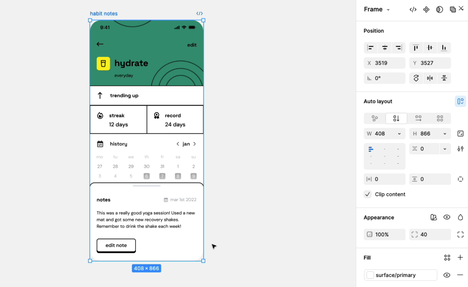
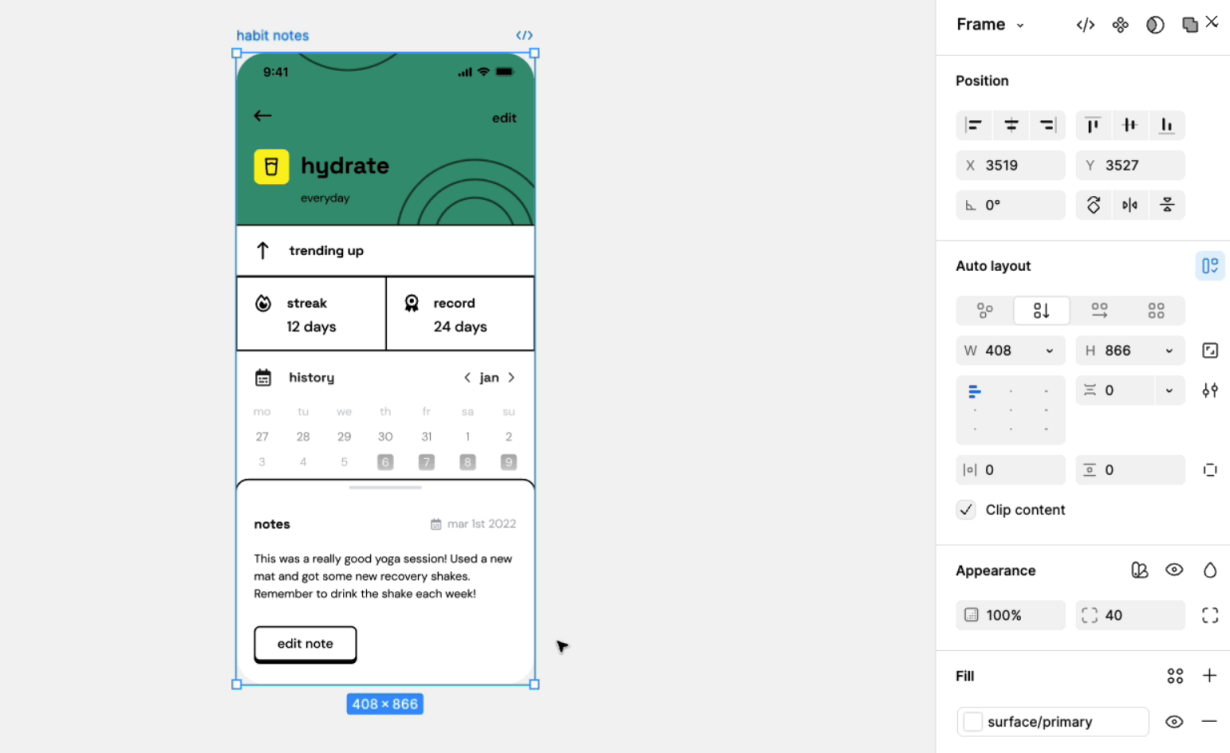
Figma Auto Layout becomes easier to debug when you inspect three things together: the selected layer, its immediate parent and the sizing rule on the axis that is failing. A missing Fill option and a button that grows unexpectedly can look like the same problem while needing different fixes.
Before changing settings, write one sentence describing the intended behavior. For example: "This button should grow with its label, while the row containing it should span the card." That sentence gives you a way to judge each change. Keep it beside the component while you work, especially if several people are editing the file.
The practical checks are straightforward:
Identify the selected layer and its immediate parent before changing a sizing rule.
Test text changes separately from container changes so you can see which relationship fails.
Check layout versions before applying a fix from an older tutorial.
Hand off the intended narrow and wide behavior alongside the measurements.
According to Figma's Auto Layout guide, Fill container applies to children of auto layout frames, not top-level frames. Hug contents sizes an auto layout frame around its children and spacing. Fixed keeps the chosen dimension. Width and height can follow different rules.
Select the problem layer in the Layers panel, then inspect its immediate parent. An auto layout frame further up the hierarchy does not tell you enough about the selected layer's relationship. If the text sits inside a button, and the button sits inside a row, inspect both boundaries separately.
Record the sizing relationship
Make a short note with a row for the label, button and outer row. For each one, record what should determine its width and height. Use plain language first: "text determines width," "card determines width," or "height stays unchanged." Then compare that description with the settings you see.
This exposes a common ambiguity in the phrase "make it responsive." A content-sized button and a full-width button can both be valid. They solve different layout requirements. Decide whether the control should follow its label or the available space before choosing a setting.
If Fill is missing, start with eligibility rather than searching for a hidden toggle. Is this a child of an auto layout frame? Are you selecting the control itself, its label or a containing frame? If Hug is missing, check the layer type. For frame sizing, Figma's guide describes Hug on auto layout frames. Text layers have their own resizing behavior; Figma's text properties guide also documents vertical Hug contents for text inside auto layout frames. Record the actual selection before rebuilding anything.
For an unusually stubborn size, inspect minimum and maximum dimensions as well. Figma allows these limits alongside other resizing settings. A size limit deserves a reason, such as a documented compact state. Don't remove it just because a larger example looks better without it.
Reproduce the issue with one small button
Work on a duplicate or a small example before changing a shared component. A reduced example makes it easier to distinguish the button's own behavior from the behavior of its surroundings. Keep the original visible so that you can compare the same content in both places.
Try this exercise:
Create a short text label and place it in an auto layout frame.
Give that frame a fill and padding so it becomes the button background.
Set the button frame to size around its label.
Duplicate the button and place both buttons inside another auto layout frame.
Give the outer frame a deliberate width, then inspect the sizing choices of its children.
The purpose is to compare two decisions: how a button responds to its text, and how that button occupies its parent. You do not need an extra background rectangle simply to make the frame look like a button. Keeping this example small makes the relevant boundaries easier to inspect.
Change the label from "Save" to "Save and continue." Observe which boundary moves. Restore the short label, then resize the outer frame. If the result differs from your intended sentence, identify the first layer where the difference appears. Avoid changing several nested frames at once; you will lose the evidence of what fixed the issue.
Run content and container tests separately
For the content test, hold the outer frame steady. Use a short action, a longer action and a realistic translated label if the product supports multiple languages. These are test inputs, not claims about the correct size of every button. Note whether the label, button or row changes first.
For the container test, keep the label unchanged and compare a comfortable width with the narrowest width your product supports. Decide what should happen when the row cannot fit: stack the controls, wrap them, reduce optional content or use another documented state. Show the intended result in the design. Don't leave the decision hidden inside an accidental overlap.
A compact record could read: "Long label: button expands; row remains inside the card. Narrow card: actions stack; primary action remains after the secondary action." The precise order depends on your interface. The useful part is that another designer can reproduce the test and judge whether it passed.
Avoid dragging a button edge as your first repair if you intend it to remain content-sized. Figma documents that manually entering a dimension changes that axis to Fixed. If the button stops growing after a visual adjustment, inspect its rule again before changing the text or padding.
This is a diagnostic exercise rather than a finished production component. Your actual button still needs the appropriate states, accessible implementation and behavior for the content it will contain. Keep those implementation checks in the handoff rather than treating a successful canvas test as the whole job.
Separate padding from gap in Figma Auto Layout
Padding is space between a frame's edge and its contents. Gap describes spacing between items. If the space feels wrong, decide which relationship you want to change before editing a number. The Auto Layout guide distinguishes these properties; your debugging note should distinguish them too.
If two buttons sit too close together, inspect their parent's gap. If text feels cramped inside each button, inspect the button frame's padding. Increasing the outer row's padding will not directly solve the second problem. Select the boundary whose space you actually want to change.
Try a simple visual audit. Name the frame's edge, the first child's edge and the next child's edge. Describe the empty space between each pair. This helps when a nested row has several similar values and the sidebar no longer makes the relationship obvious.
Use a spacing change to test a hypothesis
Suppose the text appears too close to the left edge but the whole button is also misaligned with its neighbors. Treat these as separate observations. Change only the button's left padding and inspect the label-to-edge distance. Restore it if that wasn't the cause, then inspect the parent's alignment or spacing for the positioning issue.
Write a small check beside the component: "The label should remain comfortably separated from the button edge after the text changes." Test short and long labels. This turns a visual preference into observable behavior without inventing a universal padding value or forcing every control into the same dimensions.
If an object overlaps unexpectedly, check whether it participates in the layout flow. Figma calls the exclusion setting Ignore auto layout; older material may call it absolute position. An excluded layer does not take part in the ordinary flow with its siblings. A floating badge may need that treatment, while a text label beside an icon may need to remain in the flow.
Before changing an excluded object, write down why it overlaps. An intentional status badge and an accidentally displaced label need different repairs. Keep deliberate overlaps documented so someone else doesn't later remove them while cleaning up the file.
Check the layout version before copying an old fix
Figma's Use auto layout with CSS Flexbox in mind describes changes to padding, strokes, Fill sizing and automatic gaps. Existing frames can retain legacy behavior until updated, so an older tutorial may not match the frame you are inspecting.
In the updated version, padding sets a lower bound on a frame's size. Inside strokes count in layout by default; outside and center strokes do not. The stroke setting applies to the frame itself rather than controlling its children. Auto gaps stop becoming negative when content no longer fits.
Check the layout version in the frame's auto layout settings. If you update an existing design, compare the result before treating a shifted element as a new sizing mistake. Pay particular attention to nested frames and children with different strokes or padding.
Do not assume Fill means every sibling has the same visible width. The documented update changes how available space is allocated when children have different padding or inside strokes. Compare the child frames and their content areas separately before deciding the result is wrong.
Review one migration example before updating more frames
Choose a representative component with a border, nested content and a narrow state. Duplicate the example and note its current settings. Update the copy, then compare the same labels and widths. This gives you a reviewable example without combining a layout migration with a redesign.
Record any visible change as an observation: "The outlined action is wider in the updated copy." Then investigate the relevant padding and stroke settings. Avoid hiding the difference with an unexplained offset. A correction should follow the intended behavior, and the handoff should explain any deliberate change.
Keep a before-and-after example for the team. A note such as "this frame was updated; verify the narrow state" is more useful than quietly compensating for a shift. Review the official migration guide when revisiting an older file, because migration controls and rollout details can change.
The same approach helps with tutorials. If a lesson produces a different result, compare its layer structure and layout version with your file before deciding the technique is obsolete. A copied value cannot explain a difference in the underlying relationship.
Diagnose the symptom before choosing a fix
Use this table as a sequence of checks, not a promise that every symptom has one cause. Start with the smallest relevant layer and move outward only when that layer behaves as intended.
Symptom | First inspection | Useful test |
|---|---|---|
Fill container is unavailable | Selected layer and immediate parent | Select the button instead of the label, then verify its parent uses auto layout. |
Button stops growing with text | Width rule and size limits | Compare the short and long label without dragging the button edge. |
Label feels cramped but the row has space | Button padding | Change one internal edge and observe the label-to-edge distance. |
Buttons feel crowded together | Gap on the containing row | Keep button padding unchanged while testing the row's spacing. |
A badge overlaps nearby content | Flow participation and intended placement | Decide whether the overlap belongs to the component before changing the setting. |
A legacy component changes after an update | Layout version, padding and strokes | Compare an unchanged copy using the same content and container width. |
If you can't explain a fix in one sentence, undo it and reduce the example further. An explanation such as "the label now grows because its button width follows the content" is testable. "It looks right after I changed several things" leaves the next editor with the same debugging work.
Keep the diagnostic example until the original component passes the same test. Reproducing a successful small example inside the full card helps reveal a remaining parent-level constraint. It also stops you from declaring the issue fixed just because the isolated button behaves correctly.
Hand off the behavior as well as the measurements
A developer needs to know what changes when content changes. A screenshot at a single width leaves that question open, even when all spacing values are visible. Include enough context for someone to distinguish an intentional layout rule from a convenient arrangement on the canvas.
Figma's Dev Mode guide describes inspection, generated code snippets, annotations and comparison tools. Use those facilities to communicate the design, then agree on implementation behavior with the developer. A copied snippet does not by itself settle every responsive or accessibility decision.
For the button row, a useful handoff note could say: "Buttons grow with their labels at this width. On a narrow layout, use the documented stacked state. Keep the reading order unchanged." Attach the relevant narrow and wide examples rather than asking someone to infer the transition from a desktop screenshot.
Write a behavior note a developer can check
Describe which dimensions stay fixed, which adapt and what should happen when space runs out. If the product needs truncation, make that decision explicit instead of relying on accidental clipping. Point to the exact content example that demonstrates the intended result.
Add the reason behind a size limit when it affects implementation. "Keep this action aligned with the other controls in the compact state" gives more context than an isolated width. If the decision is still open, mark it as a design question and resolve it with the developer before calling the component ready.
Ask the developer to show the implemented control with the same long label and narrow container used in the design review. Compare the result at both widths. If the browser behaves differently, locate the first relationship that diverges instead of adding more measurements to the screenshot.
Keep a short acceptance checklist with the component:
The short label produces the intended compact shape without unexplained empty space.
The longer realistic label remains readable, with the intended internal spacing.
The narrow layout follows the agreed stacking or wrapping behavior.
Optional icons and badges have documented roles and don't accidentally hide the action.
The implementation preserves the agreed reading order and has been checked for its interaction states.
These are review prompts, not evidence that the component has already passed. Record the actual result beside each one when the designer and developer inspect it together. If a case fails, attach the failing content and width so the next person can reproduce it.
For optional tooling around the wider workflow, the site's Figma plugin roundup offers related reading. Keep the sizing diagnosis focused on the native frame relationships before introducing another tool.
Return to the original intent sentence and compare it with both the design and the implementation. Keep the small diagnostic example and the final behavior note beside the component. The next time a label changes or a narrow layout fails, they give the team a specific place to start.
Linh Nguyen
Graphic Designer
Passionate Graphic Designer | Specializing in Illustration Design | Bringing Captivating Visuals to Life